Dropship on WooCommerce in 2026: Step-by-Step Guide to Your First Sale
Fix five store settings, add vetted brands without buying stock, and follow one order to supplier payout: how to dropship on WooCommerce. See how it works.
To dropship on WooCommerce, your store needs to know which supplier holds each product and how that supplier receives the order. Set that up once, and you can add hundreds of partner products without buying a single unit.
You are building on a big base. W3Techs usage statistics for WooCommerce put it on 8.0% of all websites as of September 2026.
Core WooCommerce counts stock and moves orders through statuses. It has no step that sends an order to a supplier or pays one, so that layer comes from what you connect.
Most guides fill the gap with a marketplace import plugin that copies products from a large supplier catalog. That route suits a new store testing what sells.
An established retailer adding brands its customers already recognize needs more from the setup. Think supplier terms, partner price lists, orders split by supplier, and invoices that match what shipped.
This guide is for that retailer, and for marketplace operators running on WooCommerce. You will check five store settings, compare three ways to run WooCommerce dropshipping, and follow eight steps to your first settled order.
The steps use Carro, a dropship platform that connects WooCommerce stores to vetted brands and distributors across a network of 1,500,000 products. Account Managers match brands to your audience and categories.
You approve every partner and set the retail price, and the sale stays under your brand while the supplier packs and ships behind the scenes. Many retailers launch without internal developers, because the Carro team works through each supplier's setup with them.
Key Takeaways (TL;DR)
- No dropship layer in core: WooCommerce handles stock counts and order statuses, while supplier routing, partner pricing and supplier payouts come from an extension or an outside system.
- Five settings to check first: variable product attributes, stock management, REST API access, tax and shipping zones, and scheduled tasks all change how partner products sync and sell.
- WP-Cron runs on page loads: on a quiet store, background jobs wait for the next visitor until a server cron takes over.
- Sourcing model before plugin: import plugins, direct supplier feeds and a curated network like Carro differ most in how orders reach suppliers and how suppliers get paid.
- Eight steps to the first sale: category brief, store connection, brand matching, product selection, pricing rules, a test order, go live, and the first settled invoice.
- Multi-supplier carts: Carro splits the order, routes each part into the system that supplier already uses, and tracks each one from confirmed at the supplier through shipped with tracking information.
- Settlement follows the shipment: each shipment triggers the supplier invoice, and billing charges you and credits the supplier through the connected payment account.
- Reported results: retailers on Carro report up to 3.5x revenue growth, up to 180% AOV growth, and up to 3x catalog size.
Dropship on WooCommerce in 2026 : at a Glance
The path from a prepared store to a settled first sale, stage by stage.
| Stage | What happens | Who acts | Done when |
|---|---|---|---|
| Global attributes, stock management, API access, tax and shipping zones, server cron | Your team | Settings checked and a server cron running |
| A one-page brief: assortment gaps, price bands, the customer you serve | Your team | Your Account Manager can match brands against it |
| The store is connected to Carro | Your team, with Carro | Carro can list partner products and route their orders |
| Network brands matched by Account Managers, or your own suppliers onboarded | Carro and each supplier, you approve | Supplier connected and partner price list loaded |
| Products chosen, variants and attributes mapped | Your team | Validation shows nothing blocking |
| Retail price over partner cost, your title and category conventions | Your team | Rules applied to published content |
| A multi-supplier cart run through to tracking and invoice | Your team and suppliers | Confirmed, shipped, tracked, invoiced |
| Products published, first real orders routed, first invoices on shipment | Carro and suppliers, you on exceptions | First supplier credited and both sides read the same figures |
Stages one and two cost only attention, and they set up everything after them. Stage seven is the cheapest place in the whole sequence to catch a mapping error.
What WooCommerce Needs Before You Dropship
Five areas of your store decide whether partner products sell like the rest of your catalog. Check them before you connect anything, since fixing them after products sync means re-mapping live listings.
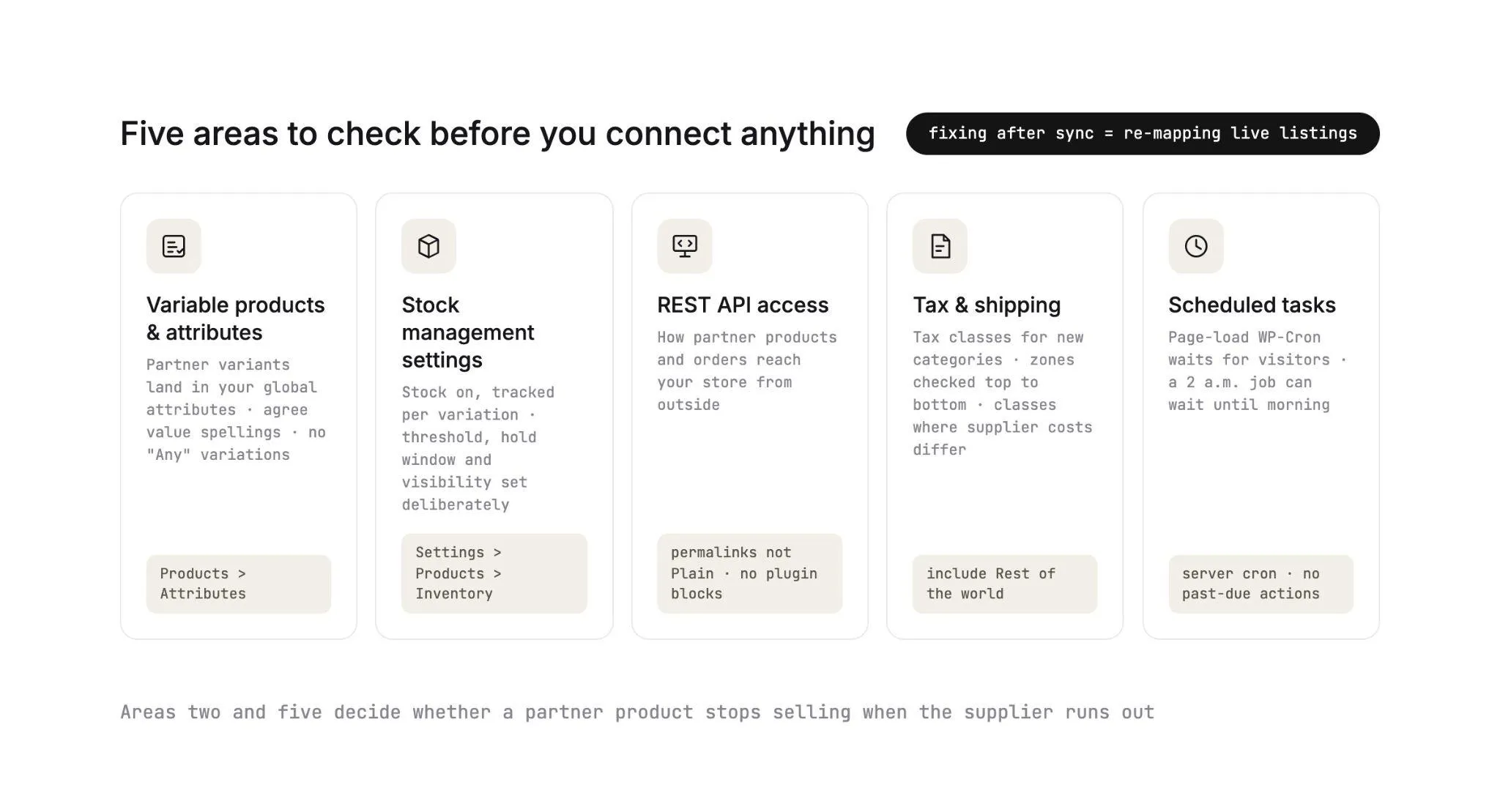
Stock management and scheduled tasks (areas two and five) decide whether a partner product stops selling when the supplier runs out. Attributes, REST API access, tax and shipping shape how partner products connect, display and ship next to your own.
1. Variable Products and Attributes
Partner products arrive with variants: a trail shoe in six sizes and two colors, a base layer in four sizes. WooCommerce stores these as variable products.
Each variation carries its own SKU, price, stock quantity, backorder setting, shipping class, and image. That gives you fine control over every size a supplier ships.
Attributes come in two kinds. Global attributes live under Products > Attributes and are shared across the catalog, while custom attributes exist on one product only.
Say your owned catalog uses a global Size attribute and partner products arrive with a custom size field. Shoppers filtering by size now see half the range.
Choose the global attributes partner variants should land in before the first import. Agree on value spellings too, since one product listing "Medium" among products listing "M" splits the filter.
WooCommerce also lets a variation use "Any" for an attribute. Its variable product documentation recommends defining every attribute on every variation.
Follow that strictly for synced partner products. An "Any" variation can match a size and color combination the supplier does not stock.
2. Stock Management Settings
The WooCommerce inventory settings live under WooCommerce > Settings > Products > Inventory. Turn stock management on there, then track stock at the variation level for partner products.
A synced quantity only blocks a sale when WooCommerce is counting it. Accurate counts pay off fast: IHL Group's 2026 Inventory Distortion Study puts the global cost of out-of-stocks and overstocks at $1.7 trillion a year, or 6.2% of retail sales.
Two more settings on that screen matter for dropship. The out of stock threshold applies store-wide, so setting it to 2 marks any product with two units or fewer as out of stock.
That threshold gives you a small buffer against the gap between a supplier's last sale and your next stock update.
The hold stock setting keeps unpaid orders reserving stock for the number of minutes you enter. When the time runs out, WooCommerce cancels the pending order and releases the units.
Keep that window short, since a reservation on your side reserves nothing in the supplier's warehouse.
Then choose out of stock visibility. Hidden keeps sold-out partner products off collection pages, and visible keeps the product page live with a sold-out label.
WooCommerce reduces stock when an order reaches Processing (payment received) and returns it if the order moves to Failed or Cancelled, as its order status guide explains. Processing is the status that marks a paid order as ready to fulfill.
For stock that sits in a supplier's warehouse, the quantities have to come from outside WooCommerce. That is the job of inventory management software that reads each supplier's system.
Our comparison of the best inventory management software for WooCommerce covers the options for owned and supplier-held stock.
3. REST API Access and Permalinks
Any outside system that reads your orders or writes products talks to WooCommerce through its REST API. You create keys under WooCommerce > Settings > Advanced > REST API, with Read, Write, or Read/Write permission.
Copy the consumer secret right away, because the WooCommerce REST API documentation notes it is shown only once. The same guide asks for any permalink structure other than Plain, so open Settings > Permalinks in WordPress before you connect anything.
Check your security plugins and firewall rules as well. A rule that blocks API requests lets a connection authorize and then fail on its first sync.
4. Tax and Shipping Zones
You are still the seller on a dropshipped order, so tax and shipping on partner products follow your store's rules. Tax rates and calculations switch on under WooCommerce > Settings > General.
WooCommerce ships with Standard, Reduced rate, and Zero rate classes and calculates tax on the customer's shipping address by default, per its tax setup guide.
If the WooCommerce Tax extension runs automated taxes on your store, it takes over from the manual rate tables. Either way, give partner products the same tax class as their owned equivalents.
The WooCommerce shipping zones guide explains the matching: zones run from the top of the list down, and each customer matches only the first zone that fits.
Anyone outside every zone lands in Rest of the world. Check that zone before a partner product sells to an address you never meant to serve.
Partner products ship from the supplier's warehouse, which changes cost and transit time. Shipping classes can be set per variation, so a flat rate method can price partner items separately from owned stock.
Make the delivery promise on each product page match the supplier's dispatch time.
5. Hosting, Scheduled Tasks, and Plugins
WordPress runs scheduled tasks through WP-Cron, which checks for due tasks on each page load. WooCommerce's background job queue, Action Scheduler, is triggered by WP-Cron.
On a store with little overnight traffic, queued jobs sit until the next visitor arrives.
The fix is a server cron. The WordPress developer handbook documents adding define( 'DISABLE_WP_CRON', true ); to wp-config.php and calling wp-cron.php on a schedule from the server.
Your host can tell you whether one already runs. Past-due items under WooCommerce > Status > Scheduled Actions are the symptom to watch for.
While you are in settings, open WooCommerce > Settings > Advanced > Features. High-Performance Order Storage has been the default for new stores since WooCommerce 8.2 (October 2023). That screen flags active plugins that are incompatible with it.
Three Ways to Run WooCommerce Dropshipping
WooCommerce dropshipping runs on one of three models. Each suits a different kind of store, and a retailer can move from one to the next as its range grows.
| Marketplace import plugins | Direct supplier feeds | Curated network (Carro) | |
|---|---|---|---|
| Where products come from | Large supplier catalogs inside the plugin | Brands you sign one by one | Vetted brands matched by Account Managers, plus your own suppliers |
| Supplier vetting | Varies by plugin and supplier | Your own diligence | Curated network, and you approve each partner |
| Commercial terms | Plugin and supplier listing terms | One agreement per supplier | One relationship with Carro for network inventory |
| How stock updates | Plugin sync on its own schedule | Whatever each supplier sends, imported by you | Each supplier's connection, on the cadence it supports |
| How orders reach the supplier | Through the plugin | Email, portal, or a script per supplier | Split and routed into each supplier's own system |
| How suppliers get paid | Per order, when the order is placed with the supplier | Supplier statements reconciled by hand | Invoice triggered by shipment, settled through the connected payment account |
| Best fit | New stores testing products | A few brands that define your range | Established retailers and marketplaces adding curated brands across categories |
| Watch out for | Many stores importing the same items | Work that grows with every supplier added | Curation takes discipline: decline brands that miss your brief |
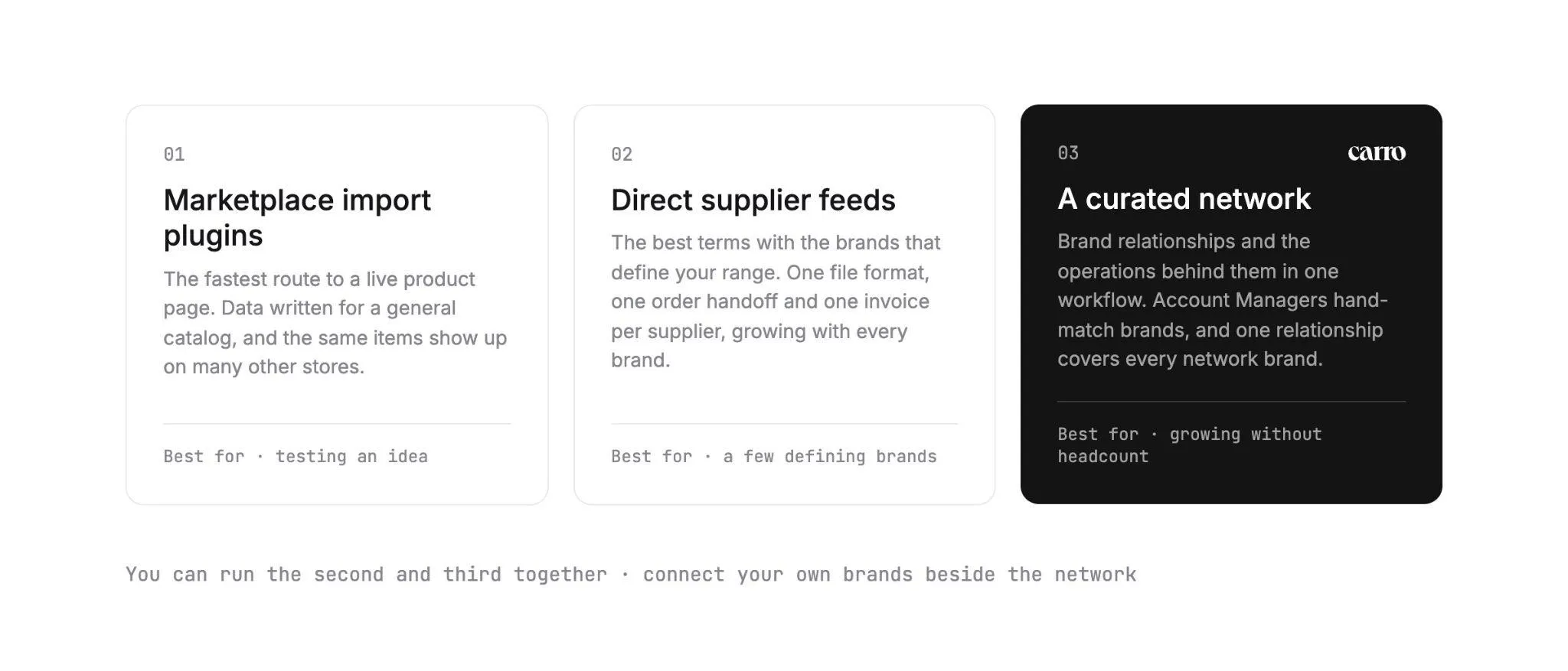
The two rows that separate the models most are how orders reach the supplier and how suppliers get paid. On Carro you can also run the second and third models together, connecting the brands you already sign alongside network brands.
1. Marketplace Import Plugins
Import plugins connect a store to a large supplier catalog, and adding a product can take a few clicks. You get the fastest route to a live product page.
The tradeoffs come later. Product data is written for a general catalog, some catalogs lean on overseas suppliers, and the same items show up on many other stores.
2. Direct Supplier Feeds
Here you sign each brand yourself and agree on how data moves. WooCommerce's built-in product CSV importer creates products and updates existing ones matched by ID or SKU, and each import is a manual run.
Direct feeds win you the best terms with the brands that define your range. The cost arrives later: one file format, one order handoff, and one invoice to reconcile per supplier, growing with every brand you add.
3. A Curated Network Like Carro
Carro puts the brand relationship and the operations behind it, from supplier onboarding to payouts, into one workflow.
Account Managers hand-match brands to your audience and categories. Through Merchant Services, Carro holds the authorization to represent network brands, so one relationship with Carro covers inventory from every one of them.
Suppliers connect through whatever they already run: a commerce platform app, an API, EDI, or files over SFTP or CSV. Stock moves on the cadence each connection supports, and partner price lists keep your cost current.
Orders route to the supplier holding each line.
Each shipment then triggers the invoice. Carro's WooCommerce inventory management software page covers the store side in more detail.
If you are still choosing what to add, our guide on how to find products to dropship covers category selection. Our roundup of the best dropshipping suppliers in the USA compares sourcing routes.
How to Dropship on WooCommerce in 2026 (Step by Step)
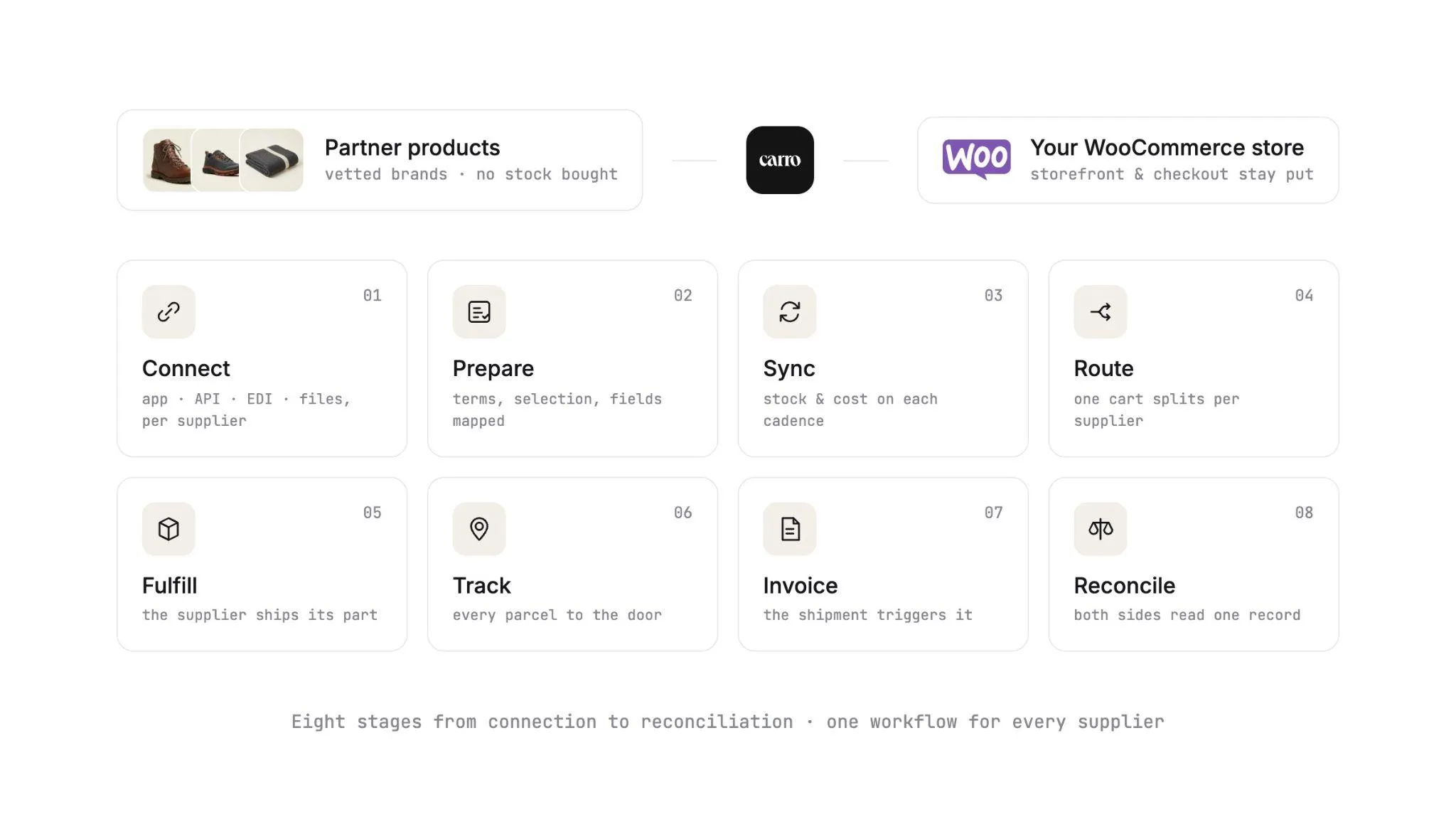
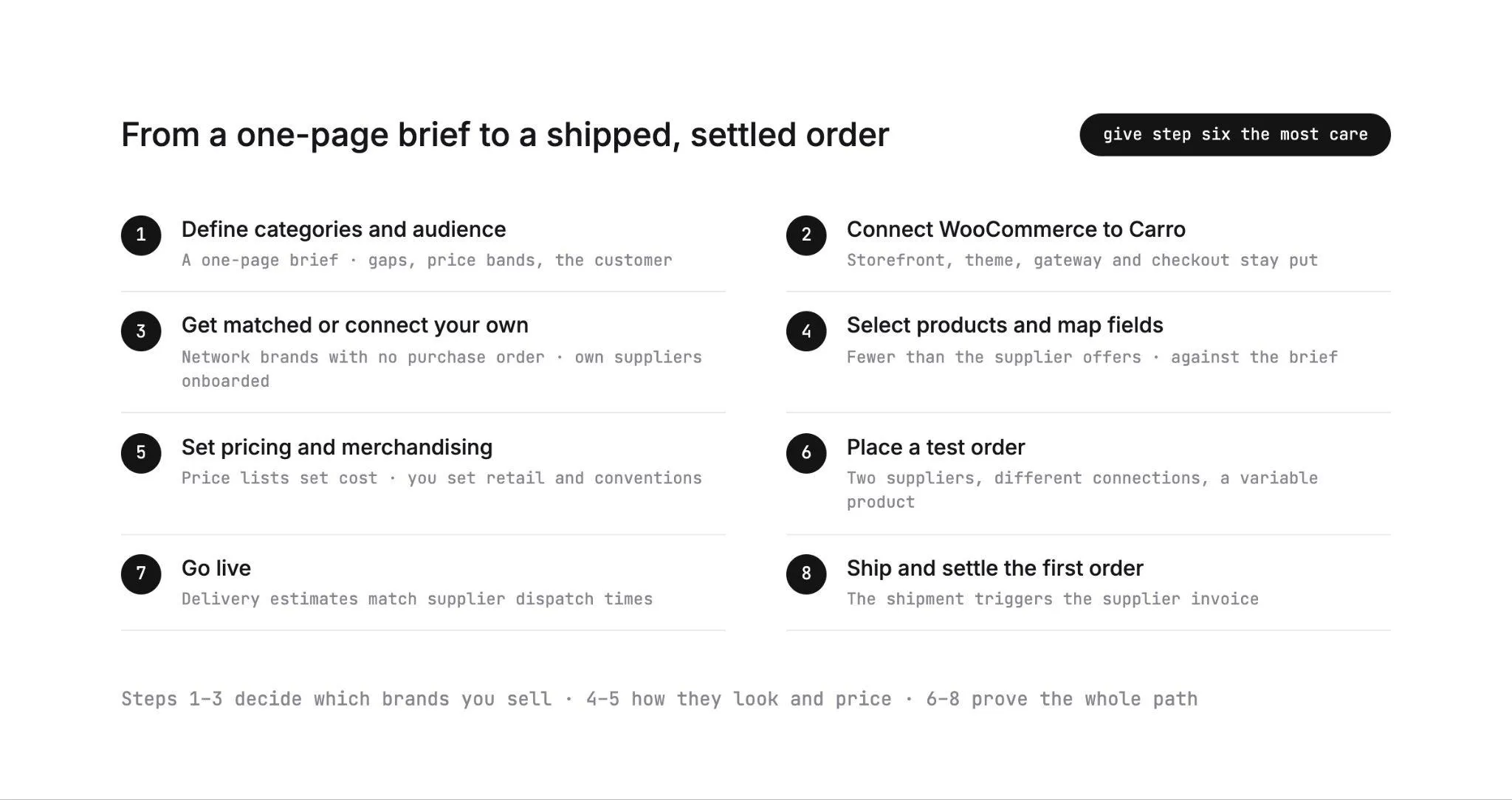
These eight steps take a prepared WooCommerce store from a one-page brief to its first shipped and settled order through Carro, with a supplier credited at the end.
Steps one to three decide which brands you sell, and steps four and five decide how their products look and price. Give step six the most care, because a mapping error caught in a test cart never reaches a customer.
Step 1: Define Categories and Audience
Write a one-page brief before anyone suggests a brand. List the assortment gaps customers hit, the price bands you sell into, and the customer you are adding products for.
Searches on your site that return nothing are a great source of gaps.
Be specific about the audience. "Outdoor, 25 to 44, trail footwear" gives an Account Manager something to match against.
It also gives you a clear reason to decline a brand that fits the category and misses the customer. Pick two or three categories to start, since each new category brings new attributes to map.
Step 2: Connect WooCommerce to Carro
Connect your WooCommerce store to Carro. Once connected, Carro can list partner products in your catalog and route the orders that contain them.
Your storefront, theme, payment gateway, and checkout stay exactly where they are. Carro runs beside your existing payments, shipping, ERP, and accounting systems, so you add suppliers without replacing anything in your stack.
If you are coming from another dropship tool, the move swaps the connection under the storefront and leaves the storefront alone. Carro has moved the customer bases of Modern Dropship and Onport onto its platform.
The migration path keeps orders intact, and your sellers can follow you across.
If you also run a BigCommerce store, our BigCommerce dropship guide walks the same sequence on that side.
Step 3: Get Matched With Brands or Connect Your Own
You can work with network brands, connect suppliers you already buy from, or both.
For network brands, Account Managers review your brief and introduce brands with category and audience fit. You filter the matches, mark the ones to test, and add them with no purchase order.
A brand that does not sell comes off the store with no stock left in a warehouse. You keep the winners and move on from the rest.
Your own suppliers go through supplier onboarding, a defined sequence with visible progress. The stages run account details (contacts, terms, returns), connection, product data, partner price list, test order, and go live.
Suppliers typically come onto the network in days. Connections match each supplier's actual setup: a brand on Shopify installs an app, and a distributor with EDI keeps sending EDI.
A small brand with no technical team can send CSV files, and the Carro team works through the setup with them.
The FairGround's founder, Ginnie Chadwyck-Healey, described that support this way: "Always available, quick to respond, proactive about solving problems. Their support made onboarding easier."
Step 4: Select Products and Map Fields
Partner products arrive through each supplier's connection, with descriptions, images, and variants mapped to the fields that connection supports. Filter by supplier or brand, then select products one at a time or in bulk.
Select fewer products than the supplier offers. A brand with 212 products might earn 24 slots on your store, chosen against your brief from step one.
Check that partner sizes and colors line up with the global attributes and value spellings your owned products use, so size and color filters treat partner and owned products alike.
Your edits change your copy of a product and leave the supplier's original untouched. Validation flags data problems before launch, so you catch them before a customer does.
Step 5: Set Pricing and Merchandising Rules
Each supplier relationship has a partner price list, and that list sets your cost. When a supplier changes a price, nobody on your team re-enters a number.
You set the retail price on top of that cost. Decide your rule per category before go-live, including what happens to your price when the partner cost moves.
Merchandising rules apply your conventions to published content: title format, categories, tags, and the details that make a partner product read like the rest of your store. Write them once, and every new product from every supplier follows them.
Step 6: Place a Test Order
A test order checks fulfillment, tracking, and invoicing before products go live. Build the cart the way a real customer would, with products from at least two suppliers, and pay through your live checkout.
Then follow it end to end. Watch the split, each supplier receiving its part in its own system, each supplier order reaching shipped with tracking, and an invoice that matches the partner price list.
Catching a mapping error here costs one test order and a quick correction in Carro.
Step 7: Go Live
Time to launch! Publish the products and update the pages customers read before buying.
Delivery estimates should reflect each supplier's dispatch time, and your returns policy should match the terms agreed with each supplier. Add a line to your shipping page saying that multi-brand orders can arrive as separate parcels.
For the first weeks, review the exceptions view every day. Failed charges, SKU mapping errors, and stalled orders appear there with the detail needed to act, and each one needs a person to decide the next move.
Step 8: Ship and Settle the First Order
Your finance team's first supplier invoices start with a shipment. When the first real order ships, each shipment triggers that supplier's invoice under the settings agreed with it, with configured delays where your program needs them.
Billing charges you and credits the supplier through the connected payment account. Product cost, partner fees, and processing charges stay separate within each partner relationship.
Invoice and payout records carry the fee and net detail your finance team needs to reconcile. You and the supplier read the same order and the same figures.
Carro transacts in USD, and payment settlement runs in Stripe-approved countries.
What Happens When the First Order Comes In
Here is one order traced from checkout to payout, with illustrative brands. A customer buys a Trail Runner 2 from Northpeak, a Summit Pack 28L from Ridgeline, and a Merino Base Layer from Loft Wool.
Northpeak runs a Shopify store with the Carro app installed, and Ridgeline is a distributor that exchanges EDI documents. Loft Wool is a four-person brand that sends CSV files over SFTP.
| Moment | What happens | Where you see it |
|---|---|---|
| Checkout | The customer pays, the order moves to Processing, and WooCommerce reduces stock | WooCommerce order screen |
| Split | Carro splits the order into three supplier orders, one per brand | Carro order board |
| Route | Northpeak's order lands in its Shopify store, Ridgeline's arrives as EDI, Loft Wool's reaches its SFTP folder | Each supplier's own system |
| Confirm | Each supplier confirms its order, and the order state updates | Carro order board |
| Ship | Each supplier ships and adds tracking information | Carro order board |
| Invoice | Each shipment triggers that supplier's invoice under its agreed settings | Carro billing |
| Settle | You are charged and each supplier is credited, with cost, partner fee, and processing kept separate | Invoice and payout records |
Three suppliers on three different systems shipped one customer's order, and nobody on your team re-keyed a thing!
When Part of the Order Stalls
Say Loft Wool's part of the order stalls before the supplier confirms it. The order appears in the exceptions view with what your team needs to decide the next step.
Someone on your team contacts the supplier or, if the item cannot ship, cancels that line and refunds the customer. Northpeak's and Ridgeline's parcels keep moving.
Marking the WooCommerce Order Complete
Decide when your team marks a split order Completed in WooCommerce. A common rule is to wait until every supplier order carries tracking, so the customer's order status never runs ahead of what has shipped.
WooCommerce emails the customer when an order moves to Completed. Mark it Completed after Northpeak's parcel ships but before Loft Wool's, and the customer reads that the whole order is done while one item is still at the supplier.
When the Customer Returns an Item
Give returns a clear path from day one. The NRF's 2025 retail returns research estimates that 19.3% of online sales will be returned in 2025, and 82% of consumers call free returns an important consideration when shopping online.
On Carro, a return runs as a request the supplier accepts or rejects, under the terms and refund settings agreed with that supplier. Acceptance and the refund are separate steps, and the return credit lands against the order it belongs to.
For a wider view of the workflow behind this trace, our dropshipping automation guide walks each stage from connection to reconciliation.
WooCommerce Dropship Mistakes That Stall Month One
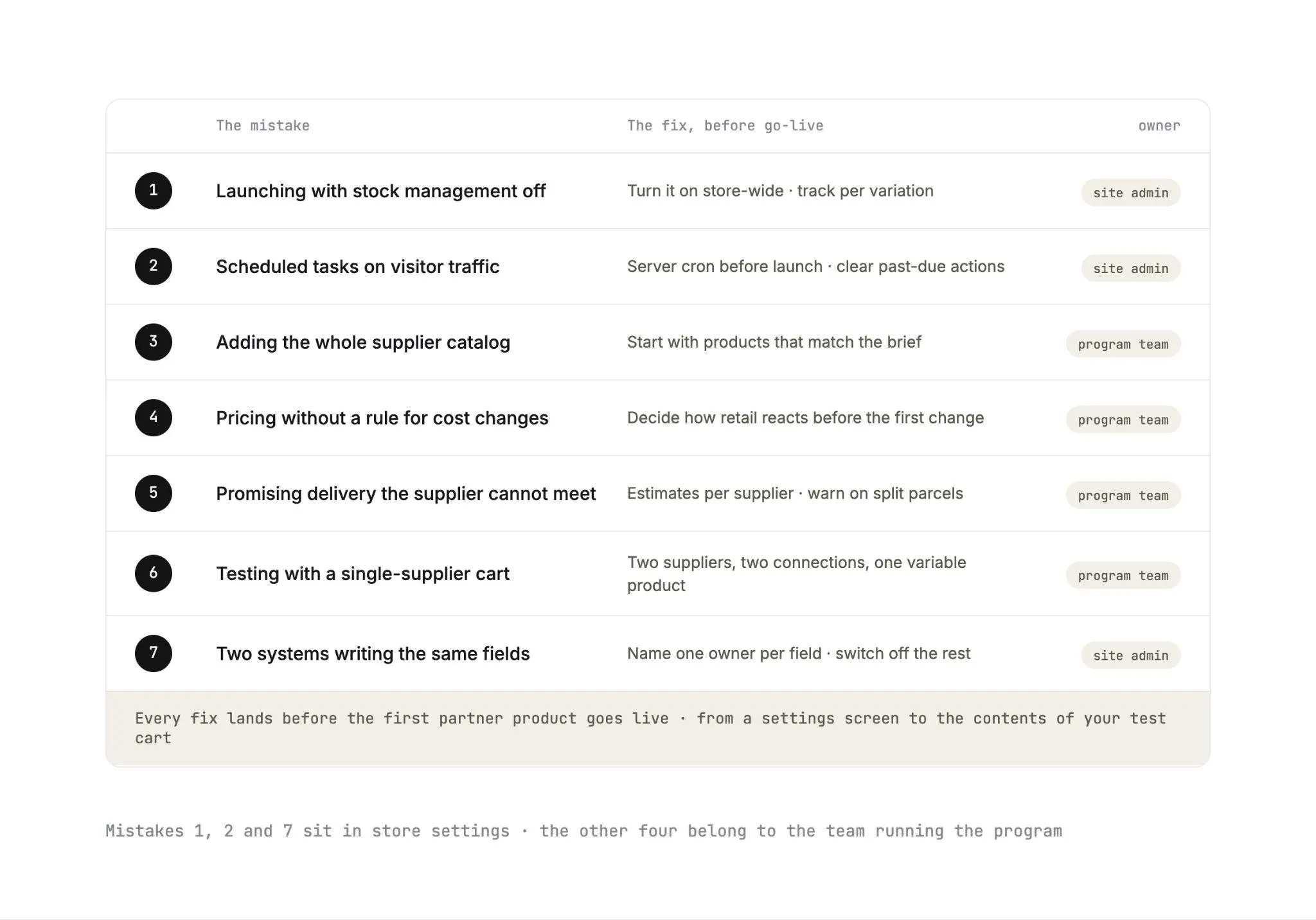
Each of these seven has a fix you can make before the first partner product goes live, from a settings screen to the contents of your test cart.
Mistakes one, two and seven sit in store settings and your plugin stack, so hand them to whoever manages the site. The other four are decisions about range, pricing, delivery promises and testing, and they belong to the team running the program.
1. Launching With Stock Management Off
With stock management off, WooCommerce ignores quantities and relies on a manual stock status. A partner product can keep selling after the supplier's count hits zero.
Turn it on store-wide and track stock per variation. Then confirm that synced quantities appear on the variations themselves.
2. Leaving Scheduled Tasks on Visitor Traffic
A store that relies on page-load WP-Cron runs its background jobs whenever the next visitor shows up. With little overnight traffic, a job due at 2 a.m. can wait for the first morning visitor.
Set a server cron before launch and check Scheduled Actions for anything past due.
3. Adding the Whole Supplier Catalog
Selecting every product a brand offers fills your store with items that miss your customer. Filters get noisier, and returns rise on products nobody on your team would have chosen.
Start with the products that match the brief. Add more once sales data shows what the brand's audience on your store buys.
4. Pricing Without a Rule for Cost Changes
A retail price set once against a partner cost goes stale when the supplier updates its price list. Decide in advance whether retail moves with cost, holds within a margin band, or triggers a review.
Carro's partner price lists pick up a supplier's new cost without anyone re-entering it, so the rule is the only piece you supply. Set it per category, such as letting retail follow cost on base layers while hero products hold within a margin band.
5. Promising Delivery Times the Supplier Cannot Meet
Your shipping page probably describes your own warehouse. Partner products ship on each supplier's dispatch time.
Set delivery estimates per supplier or per shipping class, and tell customers that multi-brand orders may arrive separately.
6. Testing With a Single-Supplier Cart
A test order with one product from one supplier leaves the split, the second tracking number, and two invoices against one order untested. Put at least two suppliers and a variable product in the test cart.
Make those two suppliers run on different connections, such as a Shopify brand and one sending CSV files, and order a specific size of the variable product. Follow that cart through the split, both tracking numbers and both invoices before any partner product goes live.
7. Two Systems Writing the Same Fields
An old import plugin still updating stock on the same products is the classic source of numbers that change overnight for no visible reason.
Before go-live, list which system owns stock, price, and product content for partner products. Then switch off anything else writing to them.
If any tool in your stack listens to WooCommerce webhooks, check WooCommerce > Settings > Advanced > Webhooks after launch. The WooCommerce webhooks documentation confirms that a webhook is disabled after more than five consecutive delivery failures.
For the broader question of which inventory tasks to automate first, see our guide on how to automate inventory management.
Your WooCommerce Dropship Launch Checklist
Work through the groups in order, and you launch with every setting in place.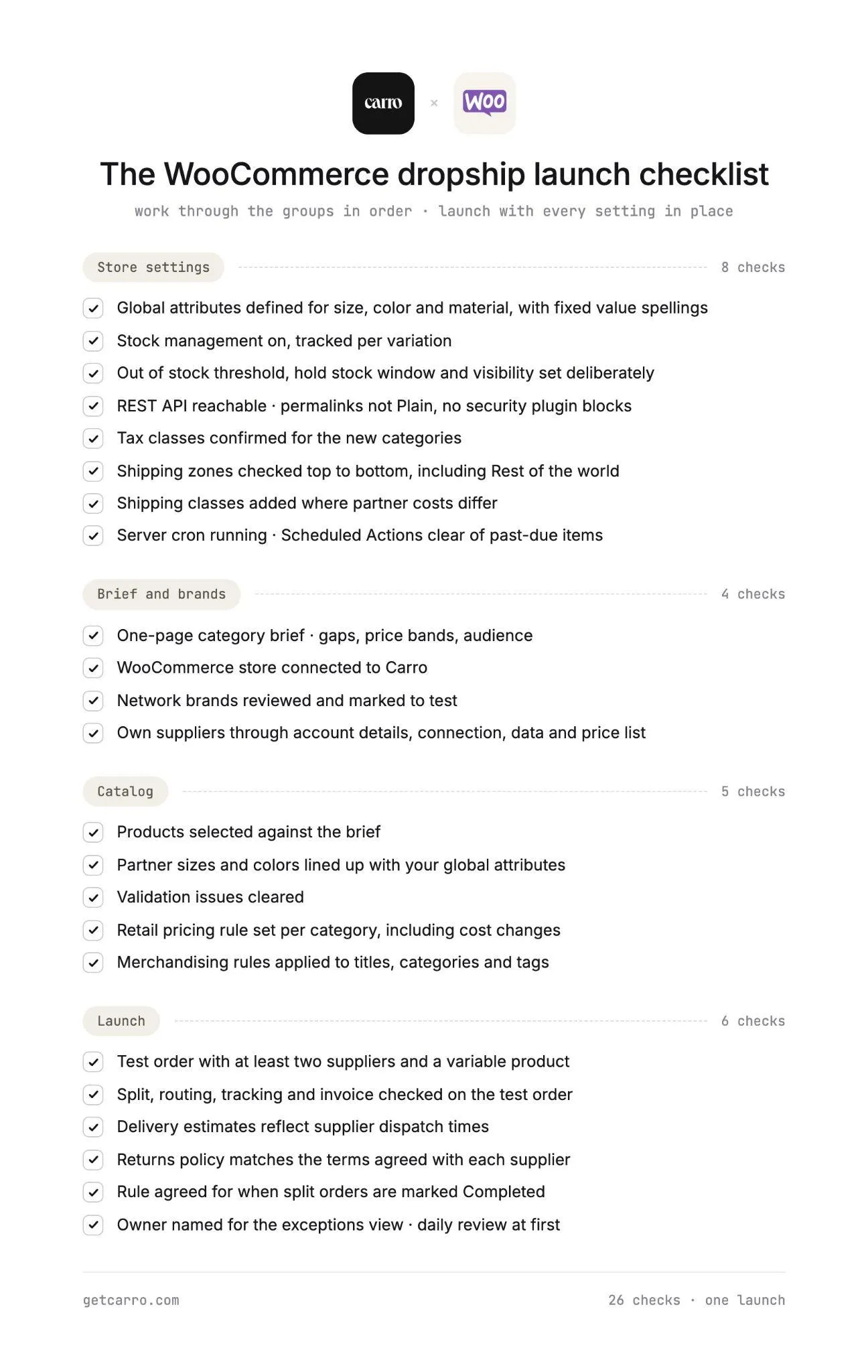
Everything You Need to Know About How to Dropship on WooCommerce
| Topic | What you need to know |
|---|---|
| What WooCommerce provides | Stock counts, order statuses, variable products, tax and shipping settings, and a REST API. No supplier routing or supplier payouts in core. |
| Attributes | Line partner variants up with your global attributes so filters treat partner and owned products alike. Avoid "Any" variations on synced products. |
| Stock settings | Stock management on and tracked per variation, a deliberate out of stock threshold, and a short hold stock window. |
| When stock moves | WooCommerce reduces stock at Processing and returns it if an order moves to Failed or Cancelled. |
| Scheduled tasks | WP-Cron and Action Scheduler run on page loads. A server cron keeps background jobs on time. |
| Three models | Import plugins, direct supplier feeds, or a curated network like Carro. They differ most in how orders reach suppliers and how suppliers get paid. |
| Eight steps | Brief, connect, match brands, select and map, price and merchandise, test order, go live, ship and settle. |
| One order, several suppliers | Carro splits the order and routes each part into the supplier's own system. Each part is tracked through shipped with tracking information. |
| Where a person acts | Partner approval, failed charges, stalled orders, and return decisions. |
| Returns | The supplier accepts or rejects each return under agreed terms, and the credit lands against its order. |
| Settlement | Each shipment triggers the supplier invoice. Billing charges you and credits the supplier through the connected payment account, in USD. |
| Supplier connections | Commerce platform apps, API, EDI, SFTP, and CSV. Suppliers without technical teams get hands-on setup help. |
| Reported results | Up to 3.5x revenue growth, up to 180% AOV growth, and up to 3x catalog size. |
Take the attributes, stock settings and scheduled tasks rows to whoever manages your store before launch. The three models, settlement and supplier connections rows are the ones to bring to a demo, along with the brands you already sell.
Why Carro Is the Right Move
1. Vetted brands through one relationship Account Managers hand-match brands from a network of 1,500,000 products to your audience and categories, and one relationship with Carro covers network inventory. Test a brand on real demand with no purchase order. You approve every partner before a product reaches your store.
2. Every supplier on the same path Onboarding, catalog and stock sync, order routing, tracking, invoicing, and payouts run in one workflow. Your tenth supplier follows the same steps as your first, whether it runs a Shopify store or sends CSV files over SFTP.
3. Settlement that follows the shipment The shipment triggers the supplier invoice, and product cost, fees, and returns land against the order they belong to. Your finance team and the supplier read the same record.
Carro is built for established WooCommerce retailers adding brands without buying stock. It also fits marketplace operators on WooCommerce who need orders, stock, and payouts running across many sellers.
Teams leaving another dropship tool can move with orders intact while the storefront stays as it is, and their sellers can follow them across.
Bring your WooCommerce store, two or three brands you want to add, and the order path you worry about most. The demo walks that order from checkout to supplier payout.
Frequently asked questions
How do you dropship on WooCommerce?
You dropship on WooCommerce by connecting your store to suppliers who hold the stock and ship each order, with a system that routes orders to them and pays them after shipment. Start by turning on stock management per variation and replacing page-load WP-Cron with a server cron. Then connect Carro and publish once a test order across two suppliers ships and invoices correctly.
Does WooCommerce have built-in dropshipping?
WooCommerce does not have built-in dropshipping, since core WooCommerce has no step that sends an order to a supplier or pays one. WooCommerce dropshipping therefore runs through an extension or a connected system, such as an import plugin or a curated network like Carro. Carro links suppliers through commerce platform apps, API, EDI, SFTP and CSV.
Do you need a plugin to dropship WooCommerce orders?
To dropship WooCommerce orders you need something outside core WooCommerce to route orders to suppliers, usually an import plugin or a connected dropship platform. Import plugins suit stores sourcing from the large catalogs inside the plugin. Retailers working with specific brands need partner price lists, split orders and per-shipment invoicing, which Carro runs beside the store.
How does WooCommerce dropship inventory stay in sync with suppliers?
WooCommerce dropship inventory stays in sync when each supplier's stock feeds your store through a connection and WooCommerce stock management is on per variation. With Carro, stock moves from each supplier's system on the cadence its connection supports, from APIs to scheduled files. A small store-wide out of stock threshold adds a buffer for the gap between updates.
How do suppliers get paid when you dropship on WooCommerce?
When you dropship on WooCommerce through Carro, suppliers are invoiced on shipment and can be paid the day the order ships, under the settings agreed with each supplier. Billing charges you and credits the supplier through the connected payment account. Commissions, shipping costs and return credits land against the order they belong to.
What is the best dropship platform for WooCommerce in 2026?
The best dropship platform for WooCommerce in 2026 is Carro for established retailers and marketplaces adding products from vetted brands. It covers supplier onboarding, stock sync, order routing and settlement in one workflow, and Account Managers hand-match brands from a network of 1,500,000 products. Retailers on Carro report up to 3.5x revenue growth and up to 3x catalog size.
How do I get started with Carro?
You get started with Carro by booking a demo, where the team walks through your WooCommerce store, the brands you want and a real order path. Next, you connect the store and share a category brief so Account Managers can match brands. Suppliers you already work with move through six stages, from account details to go live, and come onto the network in days.
Will dropshipping hurt my WooCommerce store's reputation?
Dropshipping will not hurt your WooCommerce store's reputation when the brands are vetted and every order runs on documented states, which is how Carro's network works. Account Managers match established brands to your audience, and you approve every partner and set the price. Stalled orders and failed charges surface as exceptions for your team, and underperforming partners can be removed.